
Troubleshooting Common Issues
This page lists solutions for the most common issues you may encounter after installing or upgrading CPV Lab.
⚙️ This page is for CPV Lab (self-hosted) users.
☁️ If you are on CPV One and experiencing an issue, contact CPV One support (opens new window) directly - you do not manage the server.
Quick Summary
- ionCube Loader Version Mismatch
- Cron Job PHP Version Mismatch
- Timezone Error in PHP
- MySQL only_full_group_by Error
- Ad Performance Not Showing in Stats
- Charts Not Loading - Spinning Animation
ionCube Loader Version Mismatch
Problem
CPV Lab does not load or shows a blank page. The error log shows a message like:
Fatal error: The file /home/.../public_html/lib/app.inc encoded as type [1/72]
cannot be decoded by this version of the ionCube Loader.
Why it happens
CPV Lab uses ionCube to protect its license files. The ionCube Loader installed on your server does not match the PHP version you are running. This is the most common setup error after a PHP upgrade.
Solution
- Check your current PHP version. Log in to cPanel and go to PHP Version or Select PHP Version to see what version is active.
- Download the correct ionCube Loader for your PHP version from ioncube.com (opens new window).
- Upload the correct loader file to your server.
- Update your
php.inito reference the new loader file. - Restart PHP (or ask your host to do it).
💡 Quick fix: Contact your hosting provider's support and ask them to install the correct ionCube Loader for PHP 8.1. This is a standard request and most hosts handle it in minutes.
⚠️ CPV Lab requires PHP 8.1 or higher. If your server is still on PHP 7.x or earlier, upgrading PHP is required before the ionCube issue can be resolved.
Cron Job PHP Version Mismatch
Problem
Cron jobs fail with an error like:
Fatal error: The file .../lib/app.inc encoded as type [1/72] cannot be decoded
by this version of the ionCube Loader. in Unknown on line 0
Why it happens
Your server has multiple PHP versions installed. The Cron job is running on an older PHP version (not PHP 8.1), which has a different ionCube Loader. The files and the Cron job are using different PHP versions.
Solution
Option 1 - Specify the full PHP path in the Cron command
Find the full path to the PHP 8.1 binary on your server. It usually looks something like:
/usr/php/81/usr/bin/php/opt/php81/bin/php/usr/local/php81/bin/php
Contact your hosting provider to confirm the exact path if you are not sure.
Then update your Cron job command to use the full path:
cd /home/your-username/public_html/; /usr/php/81/usr/bin/php cron.php
Replace /usr/php/81/usr/bin/php with the actual PHP 8.1 binary path on your server, and cron.php with the correct Cron job filename.
[SCREENSHOT: cPanel Cron Jobs section showing a cron command with the full PHP path specified]
Option 2 - Set PHP 8.1 as the default for all Cron jobs
Log in to cPanel and go to Select PHP Version. Set PHP 8.1 as the default CLI (command-line) version. This changes what PHP version Cron jobs use system-wide.
If your hosting does not allow this, contact your host and ask them to set the default CLI PHP version to 8.1.
Timezone Error in PHP
Problem
Cron jobs fail and the error log shows:
PHP Warning: date(): It is not safe to rely on the system's timezone settings.
You are required to use the date.timezone setting or the date_default_timezone_set()
function... We selected the timezone 'UTC' for now.
Why it happens
PHP requires a timezone to be explicitly set in the server configuration. When it is missing, PHP falls back to UTC and shows this warning - which causes Cron job failures.
Solution
- Find your
php.inifile. You can usually access it through cPanel ➡️ PHP ➡️ PHP Configuration. - Find the line:
date.timezone = - Add your server timezone after the equals sign. Use a valid PHP timezone identifier from php.net/timezones (opens new window):
date.timezone = "Europe/London" - Save the file and restart PHP.
💡 Which timezone to use? Set this to the server's actual timezone - usually UTC unless your host has configured it differently. You set your personal reporting timezone separately inside CPV Lab under Settings ➡️ General Settings.
MySQL only_full_group_by Error
Problem
One or more of the following is happening:
- The Error Log page in CPV Lab shows:
Expression of SELECT list is not in GROUP BY clause and contains nonaggregated column... incompatible with sql_mode=only_full_group_by - All charts stop loading and show only a spinning animation
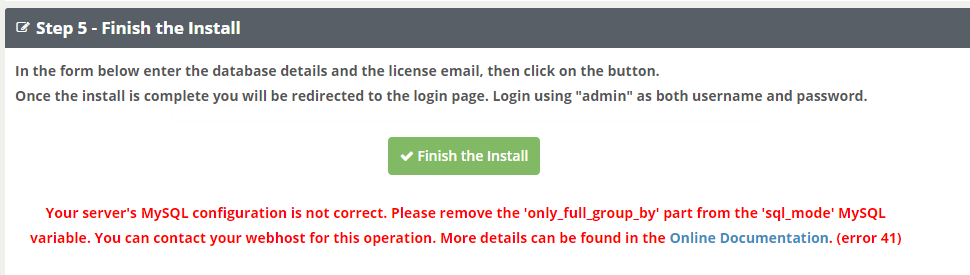
- You see an error during the CPV Lab install wizard on Step 5

Why it happens
MySQL's only_full_group_by mode is enabled on your server. This mode enforces strict SQL query rules that are incompatible with some CPV Lab queries.
Solution
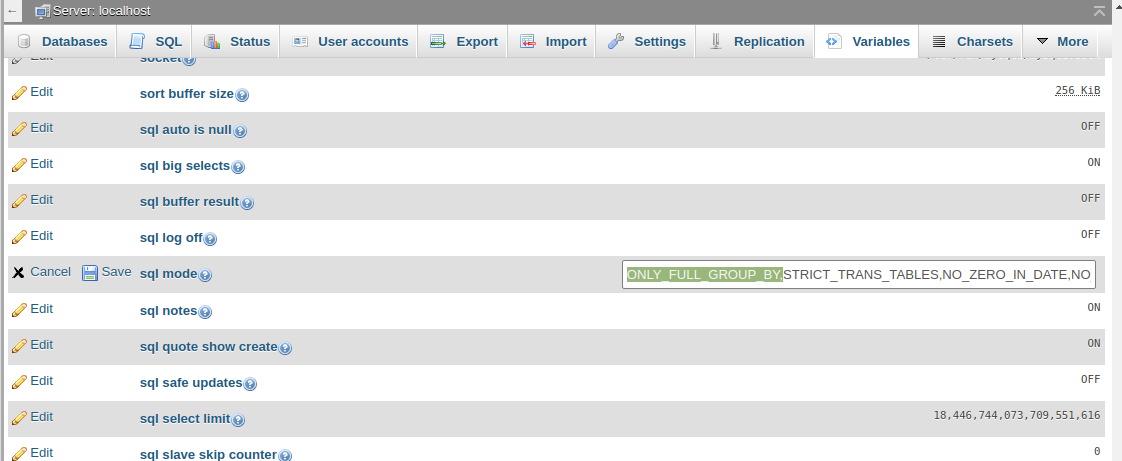
Remove only_full_group_by from MySQL's sql_mode variable.
⚠️ Important: Remove ONLY the
only_full_group_byvalue. Do NOT clear the entiresql_modevariable - other values in there are needed.
Option 1 - Via phpMyAdmin (if your host allows variable changes):
- Log in to phpMyAdmin.
- Click on Variables in the top navigation.
- Find
sql_modein the list. - Click Edit and remove
only_full_group_byfrom the value. Leave all other values in place. - Save.
Option 2 - Ask your host:
Contact your hosting provider and ask them to remove only_full_group_by from the MySQL sql_mode variable. Provide them the exact error message - this is a standard request for hosts running CPV Lab.
✅ Once this change is made, reload your CPV Lab dashboard. The charts and reports should load correctly.
Ad Performance Not Showing in Stats
Problem
The Ad Performance section on the Campaign Stats page is blank or not loading.
Why it happens
An ad blocker in your browser is blocking the Ad Performance data table. Ad blockers often target performance-related scripts, including those used to render this section.
Solution
Disable your ad blocker for your CPV Lab dashboard domain.
- In Chrome: click the ad blocker extension icon ➡️ Pause on this site or Disable on this site.
- In Firefox: click the shield icon in the address bar and disable Enhanced Tracking Protection for this site.
💡 Add your CPV Lab domain to your ad blocker's whitelist so you do not have to disable it every time.
Charts Not Loading - Spinning Animation
Problem
Reports and charts show a spinning animation but never load.
Possible causes and solutions
Cause 1 - MySQL only_full_group_by error This is the most common cause. See MySQL only_full_group_by Error above.
Cause 2 - Ad blocker An ad blocker is interfering with the chart scripts. See Ad Performance Not Showing in Stats above.
Cause 3 - JavaScript error Open your browser's developer console (press F12) and look for red error messages. If you see JavaScript errors unrelated to an ad blocker, contact CPV Lab support (opens new window) and share the error details.
Cause 4 - Cron jobs not running Some reports depend on data processed by Cron jobs. If your Cron jobs are not running, certain report sections may not update. Check that your Cron jobs are active and running correctly. See Cron Job PHP Version Mismatch above.
Still Having Issues?
If your problem is not listed here or the solutions above did not work:
- Check the Error Log inside CPV Lab - go to Settings ➡️ Error Log. This shows all recent errors with details.
- Contact CPV Lab support (opens new window) and include:
- The exact error message from the Error Log
- Your PHP version
- Your MySQL version
- What you were doing when the error occurred
You may also find useful: