
ChatGPT Ads Cost Synchronization with CPV Lab | CPV One
CPV Lab and CPV One can automatically pull your ChatGPT Ads campaign costs from the OpenAI Ads API and display them in your campaign reports. This means your cost, ROI, and CPC figures in CPV Lab always reflect your actual spend in ChatGPT Ads - updated automatically, without manual data entry.
☁️ This guide applies to both CPV Lab (opens new window) and CPV One (opens new window). The only difference is the Cron job step, which is required for CPV Lab (self-hosted) users only.
What Does ChatGPT Ads Cost Synchronization Do?
The ChatGPT Ads API integration connects CPV Lab | CPV One to your ChatGPT Ads account and pulls campaign spend data automatically.
Without cost synchronization:
- You must enter costs manually in each CPV Lab campaign
- Or use an estimated average CPC that may not reflect actual spend
- ROI calculations in CPV Lab will be done based on estimates
With cost synchronization:
- CPV Lab pulls your actual ChatGPT Ads spend automatically via the API
- Cost data updates regularly without any manual action
- CPV Lab calculates accurate ROI, CPC, and ROAS based on real spend figures
- You see clicks, conversions, revenue, and cost all in one dashboard
How is This Different from ChatGPT Ads CAPI?
These are two separate integrations that work in opposite directions:
| Integration | Direction | Purpose |
|---|---|---|
| ChatGPT Ads CAPI | CPV Lab → ChatGPT Ads | Sends conversion events to ChatGPT for optimization |
| ChatGPT Ads Cost Sync | ChatGPT Ads → CPV Lab | Pulls ad spend from ChatGPT into CPV Lab reports |
Both use different credentials. CAPI uses a Pixel ID and API Access Token (generated in the Conversions section). Cost sync uses a separate API Key (generated in Settings).
→ For CAPI setup, see: ChatGPT Ads Conversions API Integration
Before You Start
- A ChatGPT Ads campaign already configured in CPV Lab | CPV One - see Setting Up ChatGPT Ads Campaigns
- An active ChatGPT Ads (opens new window) account with at least one live campaign generating spend
- A valid CPV Lab (opens new window) or CPV One (opens new window) license
Quick Summary
- Step 1 - Generate a ChatGPT Ads API Key
- Step 2 - Add the Integration in CPV Lab
- Step 3 - Select Accounts to Synchronize
- Step 4 - Match Campaigns
- Step 5 - Set Up Cron Job (CPV Lab only)
- What You See in CPV Lab After Setup
Step 1 - Generate a ChatGPT Ads API Key
⚠️ This API Key is different from the CAPI API Access Token. The CAPI token is generated in the Conversions section and is used to send conversions to ChatGPT. This API Key is generated in Settings and is used to pull cost data from ChatGPT into CPV Lab. You need both if you want the complete integration.
- Log in to your ChatGPT Ads account.
- Go to Settings ➡️ General.
- Find the API Keys section.
- Click + Create New Key.
- Name it something recognizable - e.g. CPV Lab Cost Sync.
- Copy the API Key value immediately.

⚠️ Save the API Key securely before moving on, you will need it in the next step.
Step 2 - Add the Integration in CPV Lab
- Log in to your CPV Lab | CPV One account.
- Go to Sources ➡️ API Integrations.
- Find the ChatGPT Ads card and click on it to create a new integration.

- A configuration dialog will appear asking for your API Key.
- Paste the API Key you generated in Step 1.
- Click Save.

✅ CPV Lab is now connected to your ChatGPT Ads account. The next step is to select which accounts and campaigns to sync costs for.
Step 3 - Select Accounts to Synchronize
After saving the API Key, CPV Lab loads all ChatGPT Ads accounts connected under your credentials.
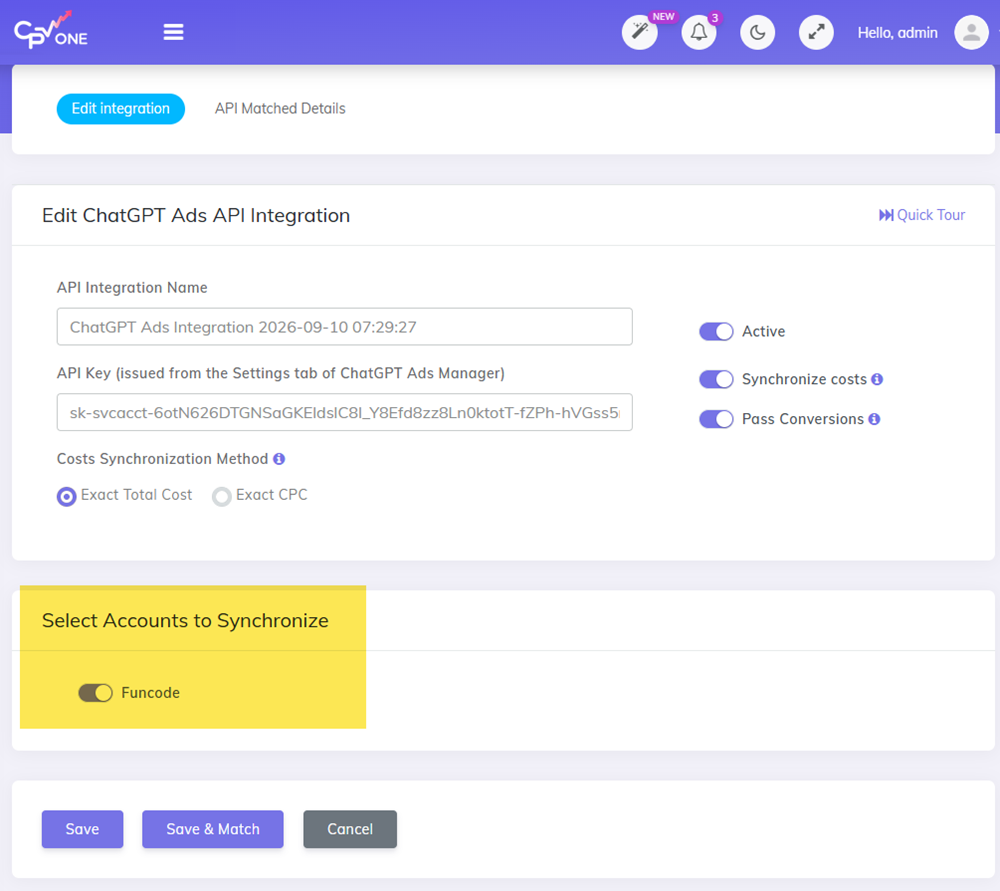
- Select the accounts you want to synchronize campaign costs for.
- Click Save to save your selection and continue later.
- Or click Save & Match to go directly to campaign matching.
💡 If you manage multiple ChatGPT Ads accounts under one login, you can select all of them here. CPV Lab will pull cost data from each selected account separately.
Step 4 - Match Campaigns
CPV Lab needs to know which ChatGPT Ads campaign corresponds to which campaign in your tracker. Costs are only pulled for matched campaigns.

How to match campaigns:
- Select a ChatGPT Ads campaign from the left dropdown.
- Select the matching CPV Lab | CPV One campaign from the right dropdown.
- Click Match.
- A new record appears in the matches table.
- Repeat for every campaign you want to sync costs for.
- Click Save Matchings when done.
To remove a match:
- Click the Delete icon in the Actions column next to the match.
⚠️ Match campaigns carefully. CPV Lab distributes cost data based on these matches. A wrong match will show incorrect spend figures in your reports. Double-check each pairing before saving.
Step 5 - Set Up Cron Job (CPV Lab only)
⚙️ This step is required for CPV Lab (self-hosted) users only.
☁️ CPV One users can skip this step. Cost synchronization runs automatically in the CPV One cloud infrastructure.
CPV Lab needs a scheduled Cron job to trigger the cost sync API call on a regular schedule.
Cron job settings:
- Frequency: Once per hour
- Command:Replace
cd /home/<server-name>/public_html/; php cron-api-integrations.php<server-name>with your actual server username andpublic_htmlwith the folder where CPV Lab is installed.
How to add the Cron job:
- Log in to your hosting control panel (cPanel or equivalent).
- Go to the Cron Jobs section.
- Add a new Cron job with the frequency and command above.
- Save.
Once active, CPV Lab will pull ChatGPT Ads cost data every hour automatically.
→ For more detail on Cron job setup: Cron Job Setup Guide
What You See in CPV Lab After Setup
Once the integration is active and campaigns are matched, your CPV Lab reports will show:
- Cost - actual spend pulled from ChatGPT Ads, updated hourly
- CPC - cost per click calculated from real spend and tracked clicks
- ROI - return on investment calculated from actual cost vs. revenue
- ROAS - return on ad spend, visible via the ROI metric
💡 There may be an initial delay of up to 24 hours before costs appear after the integration is first created. After that, costs update automatically every hour without any manual action.
Cost Synchronization Methods
When setting up the integration, you choose how CPV Lab distributes cost data from ChatGPT Ads:
Exact Total Cost CPV Lab pulls the exact total campaign spend from ChatGPT Ads and distributes it evenly across all tracked visitors for that campaign. Your total spend in CPV Lab will match your ChatGPT Ads billing exactly.
Use this when: accurate total spend matching matters more than per-click cost accuracy.
Exact CPC CPV Lab pulls the exact CPC value for each ad from ChatGPT Ads and applies it per click.
Use this when: accurate per-click cost is more important than matching total billing spend.
💡 For most use cases, Exact Total Cost is the recommended method. It keeps your CPV Lab spend figures aligned with your ChatGPT Ads invoices.
Additional Notes
Checking Integration Details
To see how many campaigns are matched and how many cost syncs have run successfully:
- Go to Sources ➡️ API Integrations.
- Find your ChatGPT Ads integration.
- Click the Details button.
Multiple ChatGPT Ads Accounts
If you manage multiple ChatGPT Ads accounts (for example, as an agency managing client accounts), you can create separate API integrations for each account in CPV Lab - each with its own API Key. Then match each client's ChatGPT Ads campaigns to the corresponding CPV Lab campaigns.
Troubleshooting
Costs are not appearing in CPV Lab after 24 hours.
- Confirm at least one campaign is matched in the Match screen (Step 4). Unmatched campaigns do not have costs pulled.
- For CPV Lab users: check that the Cron job is running by verifying it in your hosting control panel.
- Check the API Integrations page in CPV Lab for any error messages next to the ChatGPT integration.
The API Key is being rejected.
- The API Key may have been deleted or regenerated in ChatGPT Ads. Go to ChatGPT Ads Settings ➡️ General, create a new API Key, and update it in the CPV Lab integration settings.
Some campaigns show costs but others do not.
- Only matched campaigns receive cost data. Go to the Match screen and confirm all campaigns you want to track are matched.
Total cost in CPV Lab does not match ChatGPT Ads billing.
- Switch to the Exact Total Cost synchronization method. The Exact CPC method calculates total cost from per-click values and may diverge from billing when some clicks are not tracked in CPV Lab.
CPV One users - costs stopped updating.
- Check the API Integrations page for error messages. The most common cause is an expired or regenerated API Key in ChatGPT Ads. Update it in CPV Lab to restore the sync.
Frequently Asked Questions
Can CPV Lab sync ChatGPT Ads costs automatically? Yes. CPV Lab and CPV One both support automatic cost synchronization with ChatGPT Ads via the OpenAI Ads API. Once set up, costs update every hour without any manual action.
What is the difference between the ChatGPT Ads API Key and the CAPI API Access Token? The API Key (generated in ChatGPT Ads Settings) is used to pull cost data into CPV Lab. The API Access Token (generated in the Conversions section) is used to send conversion events from CPV Lab to ChatGPT Ads via CAPI. They are separate credentials serving different purposes.
Do I need cost synchronization if I already have ChatGPT CAPI set up? They serve different purposes. CAPI sends conversions outward to ChatGPT for optimization. Cost sync pulls spend inward from ChatGPT for reporting. You can use one or both - but for accurate ROI tracking in CPV Lab, cost synchronization is recommended.
How often does CPV Lab pull cost data from ChatGPT Ads? Usually once per hour (depends how the user will set it up), triggered by the Cron job (CPV Lab) or automatically (CPV One). The first sync after setup may take up to 24 hours to appear.
You may also find useful: