
TikTok Ads Conversions API (CAPI) Integration with CPV Lab | CPV One
The TikTok Conversions API (CAPI) lets CPV Lab | CPV One send conversion data directly to TikTok Ads - server to server.
No browser pixel is required. When a conversion is recorded in CPV Lab or CPV One, the tracker automatically fires a CAPI event to TikTok with the conversion details.
TikTok uses these CAPI signals to optimize ad delivery, improve audience targeting, and find more users likely to convert on your campaigns.
💡 New to CAPI or want to understand how it works before setting it up? See the CAPI Integrations Overview.
💡 The centralized CAPI Integrations flow described in this guide is available in CPV One and CPV Lab Version 14+. If you are on an older version of CPV Lab, CAPI is configured directly in the campaign setup page. We recommend upgrading to Version 14.
Who This Is For
👤 Affiliate media buyers and agencies: Use TikTok CAPI to pass clean conversion signals back to TikTok's algorithm. TikTok's in-app browser blocks standard pixels for a large share of traffic - CAPI is the reliable path for conversion data on this platform.
🏪 Ecommerce and DTC brands: Send purchase events with revenue data to TikTok's algorithm. CAPI-backed conversion data gives TikTok what it needs to optimize bidding and find buyers, especially on mobile where iOS restrictions limit browser pixel accuracy.
Before You Start
- A TikTok Ads campaign already set up in CPV Lab | CPV One with TikTok as the traffic source - see Setting Up TikTok Ads Campaigns
- An active TikTok Ads Manager account
- At least one active TikTok campaign
- Conversion tracking already configured - your affiliate network's postback URL or your own tracking pixel must be set up to send conversions to CPV Lab before CAPI can forward events to TikTok
Quick Summary
- Step 1 - Create a TikTok Pixel
- Step 2 - Get your Pixel ID
- Step 3 - Generate your API Access Token
- Step 4 - Create the CAPI Integration in CPV Lab or CPV One
- Step 5 - Pass Extra Signals (optional)
- Step 6 - Assign the Integration to a Campaign
- Step 7 - Set up your TikTok traffic source correctly
- Step 8 - Verify CAPI Events Are Being Sent
Step 1 - Create a TikTok Pixel
- Log in to TikTok Ads Manager.
- Go to Assets ➡️ Events.
- Click Manage under Web Events.

- Click Set Up Web Events and select Events API as the connection method.

- Enter a name for your pixel and choose Manually Set Up Events API, then click Next to finish.

💡 If you already have a TikTok Events API pixel, skip to Step 2.
Step 2 - Get your Pixel ID
- On the pixel details page, find the ID field and copy the Pixel ID shown there.
- Save it somewhere safe - you will need it in Step 4.

Step 3 - Generate your API Access Token
- On the pixel details page, open the Settings tab.
- Click Generate Access Token.
- Copy the token immediately.

⚠️ TikTok does not display or store the token after you leave the page. Copy it and save it in a password manager or secure document alongside your Pixel ID before moving on.
Step 4 - Create the CAPI Integration in CPV Lab or CPV One
- Go to Sources ➡️ CAPI Integrations.
- In the Quick Add section, click the TikTok Ads card.
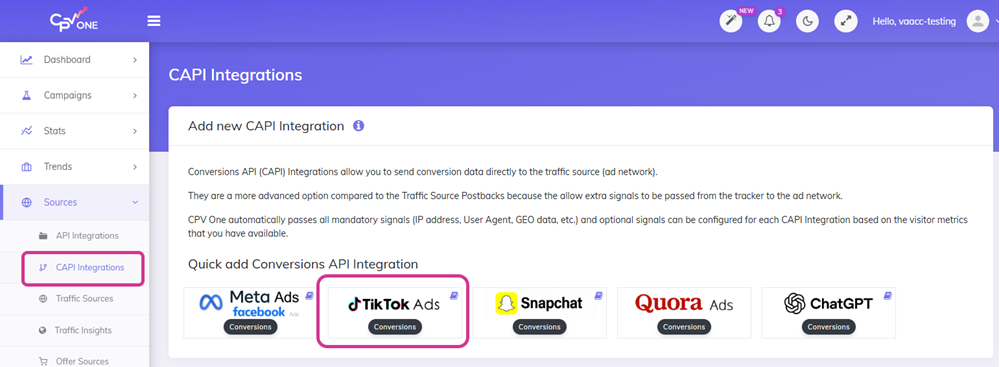
- The Add TikTok Ads CAPI Integration form opens.
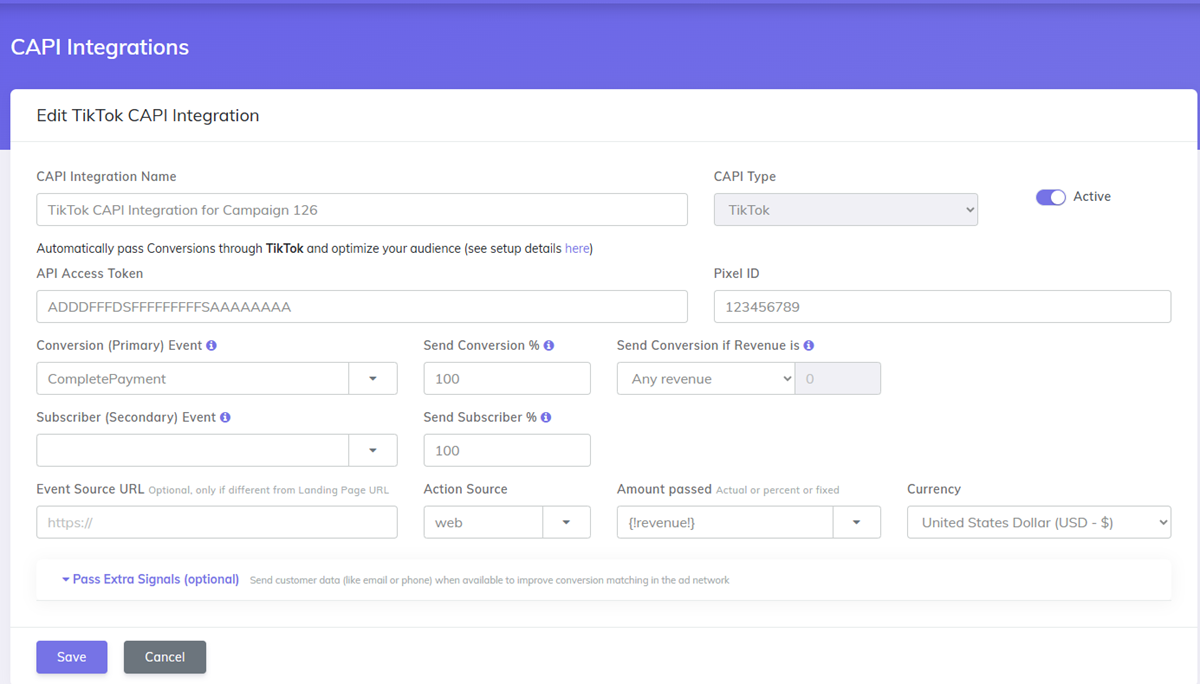
- Fill in the form:
CAPI Integration Name - A name you will recognize in campaign setup. Examples:
- TikTok CAPI - Main Pixel
- TikTok CAPI - Purchase Events
- TikTok CAPI - Lead Gen
CAPI Type - Pre-set TikTok
Active - Toggle on.
API Access Token - Paste the token from Step 3.
Pixel ID - Paste the Pixel ID from Step 2.
Conversion (Primary) Event - Select the event that matches your campaign goal (see event name table below).
Send Conversion % - Default 100. Reduce this only if you want to sample conversions sent to TikTok.
Send Conversion if Revenue is - Optional filter. Leave on "Any revenue" to send all conversions, or set a minimum revenue threshold if you only want to fire CAPI for paid conversions above a certain value.
Subscriber (Secondary) Event - Optional. Use this to also fire a TikTok event when a subscriber or opt-in is recorded, separate from the primary conversion.
Send Subscriber % - Default 100.
Event Source URL - Optional. Leave blank unless your conversions come from a URL different from your campaign's landing page URL.
Action Source - Select web for standard web-based campaigns.
Amount passed - Default {!revenue!} passes the actual conversion revenue from CPV Lab. You can also set a fixed amount or a percentage.
Currency - Match your TikTok Ads account currency. Default is USD.
- Click Save.
TikTok CAPI Event Names
TikTok event names are in PascalCase. Select the event that matches your campaign goal from the dropdown:
| Campaign goal | TikTok event name |
|---|---|
| Purchase / sale | CompletePayment |
| Order placed | PlaceAnOrder |
| Subscription | Subscribe |
| Download | Download |
| Add to cart | AddToCart |
| Start checkout | InitiateCheckout |
| Add payment info | AddPaymentInfo |
| Form submission | SubmitForm |
| Lead | Lead |
| View content | ViewContent |
| Search | Search |
| Registration | Registration |
| Contact | Contact |
| Page view | PageView |
💡 Affiliate media buyers: Use
LeadorSubmitFormfor CPL lead campaigns andCompletePaymentfor cost-per-sale offers.
💡 Ecommerce brands: Use
CompletePaymentfor completed purchases,InitiateCheckoutfor checkout starts, andAddToCartfor cart additions.
Step 5 - Pass Extra Signals (Optional)
Click Pass Extra Signals (optional) to expand and configure additional customer data fields.
Extra signals help TikTok match conversions to users more accurately and improve campaign optimization.
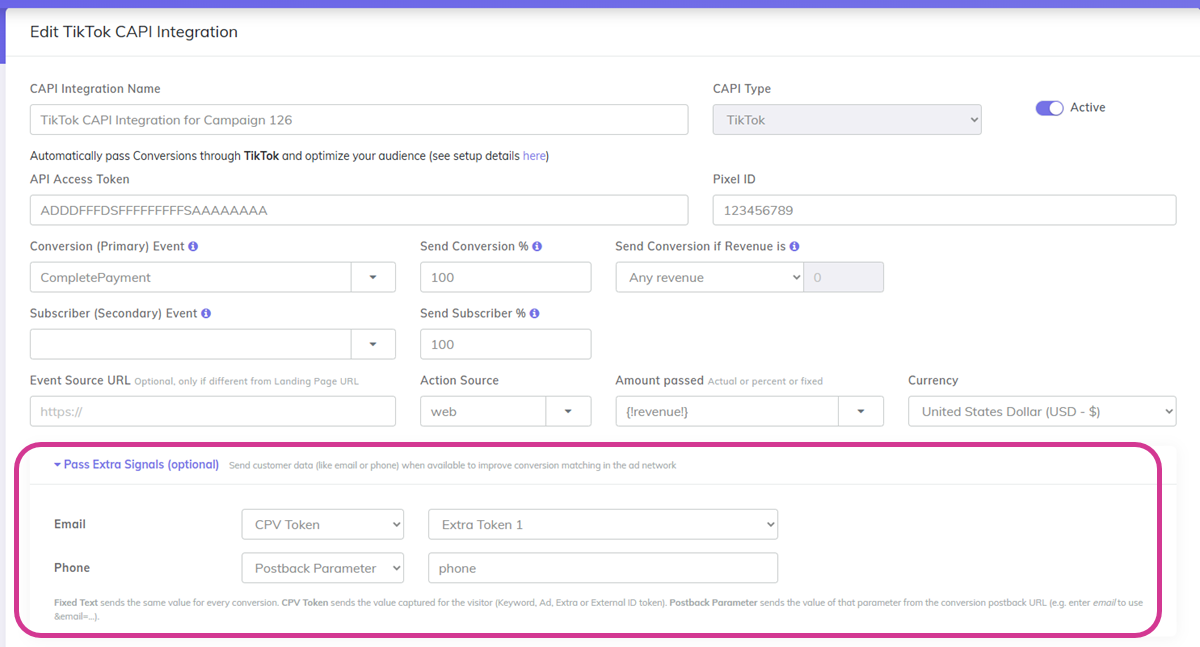
TikTok accepts the following signals:
- Email - the email address captured from the user
- Phone - the phone number captured from the user
For each field, choose how the value is sourced:
- Not passed - leave this if you do not collect this data
- CPV Token - pass the value captured for the visitor using a CPV Lab token (like a keyword, ad, Extra or External ID token)
- Postback Parameter - pass the value from a parameter in the conversion postback URL (for example, enter
emailto use&email=...) - Fixed Text - send the same fixed value for every conversion (rarely useful for PII fields)
💡 Affiliate media buyers: If your offer network passes back email or phone data in the conversion postback, use Postback Parameter to map those values here.
💡 Ecommerce/DTC brands: If you capture email during checkout and store it in CPV Lab | CPV One Extra Tokens, map those tokens here using CPV Token.
Click Save when done.
💡 How to capture email and phone into Extra Tokens: Use the
tokens.phppixel on your landing page or thank-you page. See Extra Tokens and Prepop for the full setup guide.
👤 Affiliate: Your affiliate network may pass email or phone as URL parameters. If so, capture them in your landing page URL and store in Extra Tokens using the tokens pixel.
🏪 Ecommerce brand: You collect this data at checkout. Pass it to CPV Lab via the tokens pixel on your order confirmation page.
Step 6 - Assign the Integration to a Campaign
- Open or create a TikTok Ads campaign in CPV One or CPV Lab.
- Scroll to Pass events to the traffic source (ad network).
- Click the Dedicated Integration tab.
- Select your TikTok CAPI integration from the dropdown.
- Save the campaign.
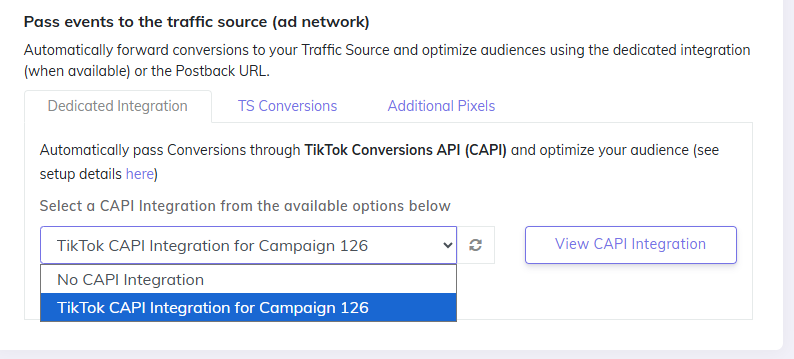
✅ CPV One or CPV Lab will now fire a TikTok CAPI event for every conversion recorded in this campaign.
💡 One integration can be assigned to multiple campaigns. If you run campaigns across different TikTok pixels, create a separate CAPI integration for each pixel.
Step 7 - Set up your TikTok traffic source correctly
For TikTok CAPI to work properly, your traffic source in CPV Lab or CPV One needs to pass the TikTok click ID.
- Set the traffic source to TikTok in your campaign settings (import it from the Catalog if you have not already).
- Make sure the External ID token is mapped to TikTok's click ID macro:
__CLICKID__. - Enable capture IP address and capture user agent in your campaign settings.
The click ID token in CPV Lab is ttclid. This is what gets passed back to TikTok with each conversion event so TikTok can match the conversion to the original click.
Step 8 - Verify CAPI Events Are Being Sent
Once the above things are implemented, CPV Lab Pro will automatically send conversion details to TikTok each time the Postback URL gets fired from the Affiliate Network in your campaign.
After receiving a few new conversions in your campaign, you should make sure that these were posted to TikTok by looking in 3 places in CPV Lab (opens new window) | CPV One (opens new window)
1. Postback Log:
- Go to Settings ➡️ Postback Log after a test conversion.
- Look for entries with
"type":"tiktokapi". - Each successful entry should show
"message":"OK"- this confirms TikTok accepted the CAPI event.

❌ Seeing an error instead of OK?
- Invalid token: The API Access Token is wrong or expired. Regenerate it in TikTok Ads Manager (Step 3) and update it in the integration.
- Invalid Pixel ID: Check the value matches exactly what appears in TikTok Ads Manager (Step 2).
- Missing click ID: The
ttclidparameter was not captured. Check your campaign URL still includes the__CLICKID__macro.
2. In TikTok Ads Manager:
In the Overview tab from the Pixel details page - you should see the number of CompletePayment events received and also the last time an event was received,like in the image below
- Go to Assets ➡️ Events and open your pixel.
- Under the Overview tab, check for received conversion events.

3. TikTok Ads Manager Reports
To see conversions in your campaign reports in TikTok Ads Manager, add the relevant Page Event custom columns in TikTok Ads Manager reporting.

⚠️ TikTok can take up to 15 minutes to show received events. This is normal and does not affect tracking accuracy.
Watch the video tutorial:
[VIDEO EMBED: TikTok Conversions API setup with CPV Lab]
<iframe width="700" height="394" src="https://youtube.com/embed/MWAjzR4rVXU" frameborder="0" allowfullscreen></iframe>
Troubleshooting
No entries in the CPV Lab Conversion Log for TikTok CAPI.
- Check that the Access Token and Pixel ID are correctly entered in the campaign setup.
- Make sure the campaign has received at least one conversion since you configured CAPI.
- Confirm that your affiliate network is firing the CPV Lab postback URL correctly.
Conversion Log shows an error, not "OK".
- Invalid Access Token — regenerate the token in TikTok Ads Manager (Step 3) and update it in CPV Lab.
- Invalid Pixel ID — double-check the Pixel ID from TikTok (Step 2). It should be a long numeric string.
- Event source URL mismatch — check that the domain in your Event Source URL matches the domain registered in your TikTok pixel settings.
Conversions appear in CPV Lab but not in TikTok.
- Check the Conversion Log for the CAPI entry — if it says "OK", TikTok received it. The delay may be up to 15 minutes.
- If the log shows errors, fix the issue (see above) and wait for the next conversion to test.
Email and phone data is not being passed.
- Confirm the tokens pixel (
tokens.php) is correctly placed on your landing or thank-you page. - Check the Extra Token values in your CPV Lab campaign report — if the columns are empty, the tokens pixel is not firing correctly.
- Make sure the Email and Phone fields in the CAPI section are mapped to the correct Extra Tokens.
Frequently Asked Questions
What is TikTok CAPI and how is it different from a pixel? A browser pixel fires in the visitor's browser and can be blocked by ad blockers or iOS privacy restrictions. TikTok CAPI sends data directly from CPV Lab's (or CPV One's) server to TikTok's API - bypassing the browser entirely. This makes it more reliable, especially for TikTok's mobile-heavy audience that often browses in-app.
Do I need a browser pixel as well, or just CAPI? CAPI alone is sufficient for conversion tracking and campaign optimization. Running both a browser pixel and CAPI in parallel is possible for deduplication purposes, but for most TikTok campaigns CAPI on its own gives you more complete and reliable data - especially given how much TikTok traffic comes through the in-app browser.
Can I use the same CAPI integration for multiple campaigns? Yes. Create the integration once under Sources ➡️ CAPI Integrations and assign it to as many campaigns as you like, as long as they all use the same TikTok pixel.
What if I have multiple TikTok pixels? Create a separate CAPI integration for each pixel. Give each one a clear name so you can tell them apart.
What is ttclid and does CPV Lab capture it automatically? ttclid is TikTok's click ID token in CPV Lab - the unique identifier TikTok adds to every ad click. CPV Lab and CPV One capture it automatically when you use TikTok as the traffic source and map the External ID token to __CLICKID__. This click ID is sent back with every CAPI event so TikTok can match the conversion to the original click.
Does TikTok CAPI work with affiliate marketing campaigns? Yes. The most common setup for affiliate marketers is: traffic from TikTok goes to your landing page or offer, your affiliate network fires the CPV Lab postback URL when a conversion happens, and CPV Lab fires the TikTok CAPI event automatically.
What revenue data does TikTok CAPI receive?
CPV Lab and CPV One passes the revenue amount stored in the {!revenue!} field to TikTok CAPI with each conversion event. This value comes from your affiliate network's postback URL or your tracking pixel's revenue parameter on your website. If no revenue is passed, you can set a fixed amount in the Amount passed field.
What currency should I use? Use the currency that matches your TikTok Ads account billing currency. If your campaigns run in multiple currencies, create separate integrations for each.
TikTok is not showing conversions in Ads Manager - what should I check? Start with the Postback Log in CPV Lab or CPV One. If entries show OK, TikTok received the event - wait up to 15 minutes and refresh. If entries show errors, fix the issue described and wait for the next conversion.