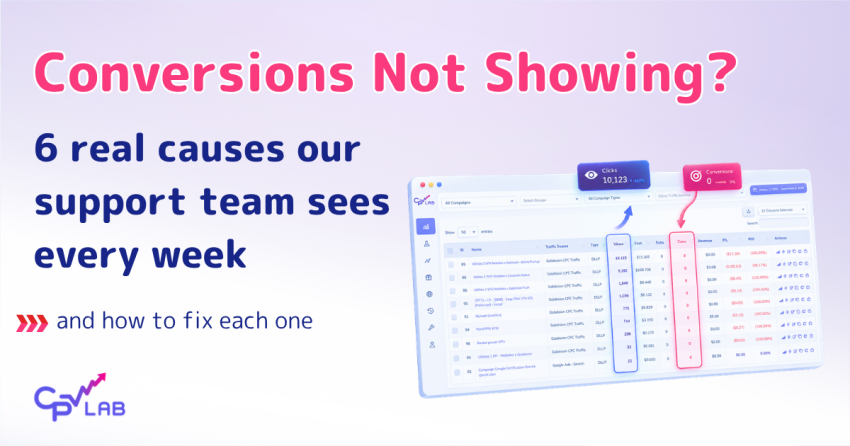
We have been running CPV Lab and CPV One for years. And if there is one message that lands in our support inbox more than any other, it is some version of this:
“I have clicks showing in the tracker but zero conversions. My network shows sales. What is going on?”
First things first: your tracker is almost certainly not broken. In our experience, when conversions are not showing, it is almost always a configuration issue – something small that got missed during setup. And once you find it, the fix usually takes about two minutes.
This article is for both CPV Lab (self-hosted) and CPV One (cloud-hosted) users. The setup is identical in both products, so whichever one you use, these steps apply to you.
We are going to walk through the 6 most common causes we see from real support cases – with the exact fix for each one.
TL;DR:
- Postback URL not set up, incomplete, or has a typo
- SubID not being passed from tracker to network (or not sent back)
- Postback URL showing default domain instead of custom domain
- Conversion pixel placed on the wrong page
- Date range hiding the conversions that are there
- The network simply never fired the postback
Before You Start: Check the Error Log
Before going through the list below, spend 30 seconds in your CPV Lab error log. It is literally called the error log and it tells you what is breaking.
The error log shows you failed postback requests, missing campaign IDs, invalid parameters, and other issues in real time. If something is broken, it will almost always leave a trace there.
When conversions are not showing and you skip the error log, you are working blind. Open it first.
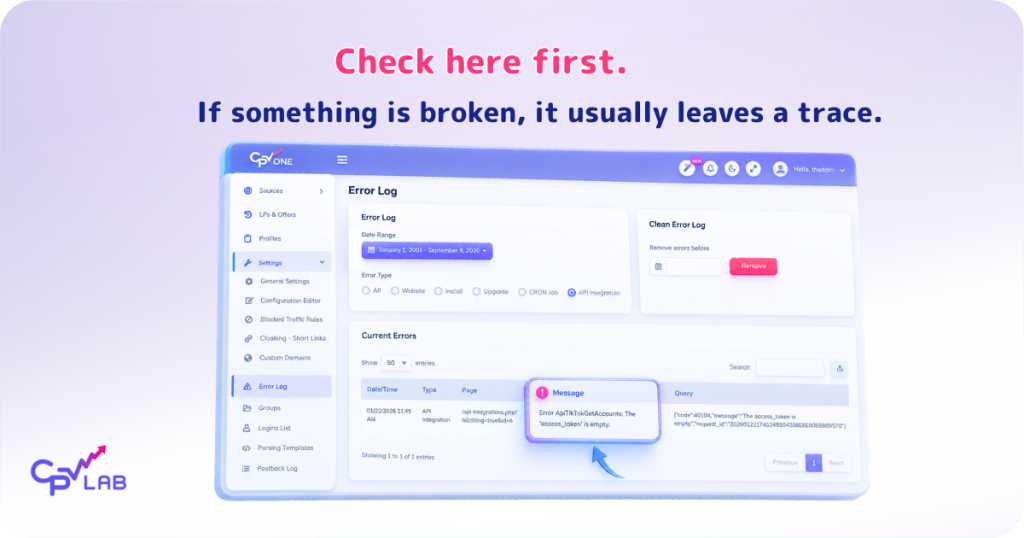
If you see entries in the error log, the causes below will help you interpret them. If the log is clean and conversions are still not showing, start from Cause 1 and work through the list.
Cause 1: Postback URL Not Set Up, Incomplete, or Has a Typo
The number one cause. By a significant margin. It sounds obvious, but it catches everyone at least once.
Every week we see campaigns that were set up perfectly in CPV Lab – correct traffic source, landing pages, offers – but no postback URL in the affiliate network. The network confirmed sales, fired nothing, and the tracker waited forever.
What happens: Your affiliate network does not automatically know where to send conversion data. You have to tell it.
The postback URL is that instruction. Without it, sales happen on the network side and CPV Lab or CPV One never hears about them.
How to check: Go to your campaign setup page in CPV Lab. Find your postback URL. It will look something like this:
https://yourtrackingdomain/adclick.php?subid=[subid]&revenue=[payout]&status=[status]Now go to your affiliate network and check if this exact URL is pasted in the correct postback field.
Check for:
- Any missing characters at the start or end
- Extra spaces (very common when copy-pasting)
- Wrong domain (see Cause 3 below)
- The URL pasted in the wrong field in the network
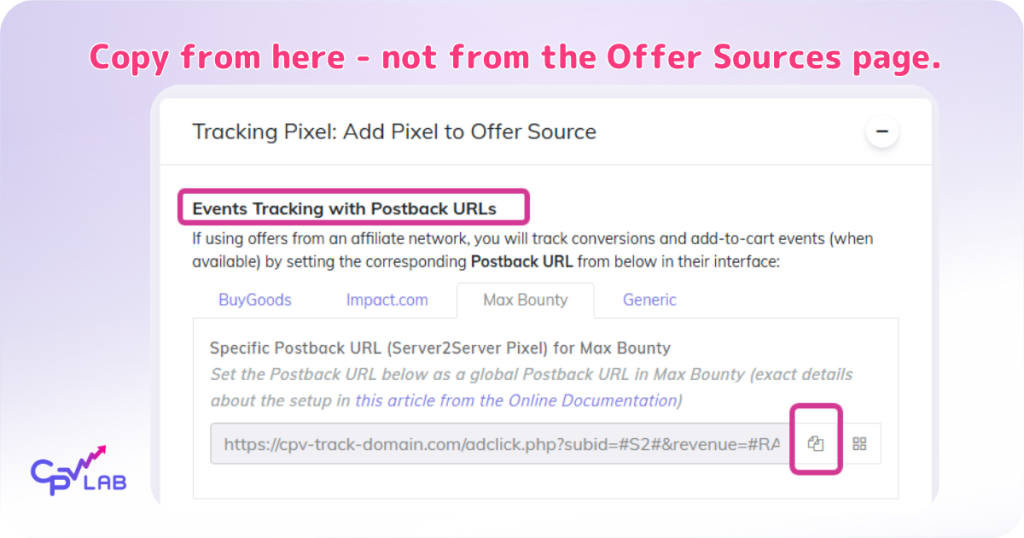
The fix: Copy the postback URL fresh from your CPV Lab campaign setup page and paste it into your affiliate network. Do not type it manually. Do not copy it from a previous campaign. Fresh copy every time.
| Important note: The postback URL on the Offer Sources page in CPV Lab shows the default tracker domain. The postback URL on the campaign setup page shows your custom tracking domain. Always use the one from the campaign setup page. |
| Example: One of our users once spent 2 hours troubleshooting before realizing there was a single space at the end of the postback URL he placed with the affiliate network. The network was firing. The URL just had an invisible extra character. Fresh copy would have fixed it in 10 seconds. |
Related reading: What is a Postback URL and How Does it Work – CPV Lab Blog
Cause 2: SubID Not Being Passed – or Not Matching
Even if your postback URL is correct, conversions will not match if the SubID is broken somewhere in the chain.
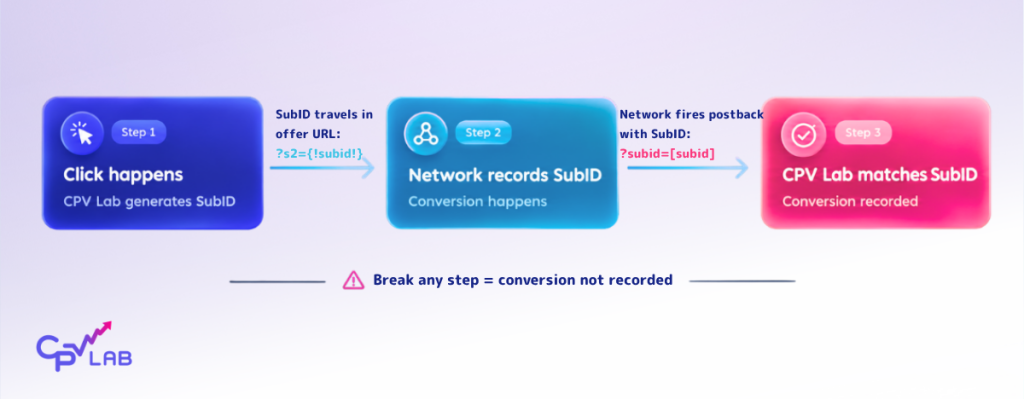
What happens: When someone clicks your campaign link, CPV Lab generates a unique SubID for that visit. That SubID needs to travel to the affiliate network in your offer URL – so the network can store it.
When a conversion happens, the network fires your postback URL and includes that SubID. CPV Lab uses it to match the conversion back to the original click.
Break any link in that chain and the conversion disappears. Clicks record. Conversions do not.
If the ClickID is not being passed, CPV Lab receives the postback but cannot match it to anything – so the conversion disappears.
This has two parts to check:
Part A – Is CPV Lab passing the SubID to the network?
Look at your offer URL in your campaign setup. It must include a SubID parameter. Different networks use different parameter names, but the CPV Lab token is always {!subid!} .
For most networks this looks like:
https://yournetwork.com/offer?clickid={!subid!}
Examples:
- MaxBounty: https://your-maxbounty-offer.com/?s2={!subid!}
- BuyGoods: https://your-buygoods-offer.com/?subid2={!subid!}
If {!subid!} is not in your offer URL, the network never gets the SubID and cannot send it back. The conversion is lost before it even starts.
Part B – Is the network sending the SubID back in the postback?
Your postback URL uses [subid] as the placeholder for what the network sends back. The network replaces [subid] with the actual value when it fires. If the network is using a different parameter name or token, there will be a mismatch.
Always check your specific network’s postback documentation to confirm the correct token name.
CPV Lab already has templates for more than 150 affiliate networks with their exact tokens, but to be sure, you need to check yourself with the network as well.
In your postback URL, the subid parameter needs to match what the network sends back. For most networks:
https://yourtrackingdomain/adclick.php?subid=[sid]&revenue=[payout]&status=[status]
The [sid] placeholder here needs to match the exact token name your network uses. Different networks use different names – some use {s2}, some use {subid}, some use {transaction_id}.
The fix: Check both ends. Confirm {!subid!} is in your offer URL with the correct parameter name for your network. Confirm your postback URL has [sid] in the right place. Then check your network’s documentation to make sure the parameter names match on both sides.
Network integration guides:
- Clickbank Integration – CPV Lab Docs
- MaxBounty Integration – CPV Lab Docs
- ClickDealer Integration – CPV Lab Docs
- 3SNET Integration – CPV Lab Docs
Cause 3: Postback URL Copied from the Wrong Place
This one is subtle and comes up regularly with users who have recently set up a custom tracking domain.
In CPV Lab and CPV One, there are two places where you can see a postback URL:
- The Offer Sources page – shows a postback URL using the default tracker domain
- Your campaign setup page – shows a postback URL using your custom tracking domain used for that campaign
The Offer Sources page shows the default domain because you might have multiple custom domains. It is a general reference.
The campaign setup page shows the correct domain for that specific campaign.
If you copied the postback URL from the Offer Sources page and your campaign runs on a custom domain, the URL does not match. The network fires to the right address. The wrong door answers.
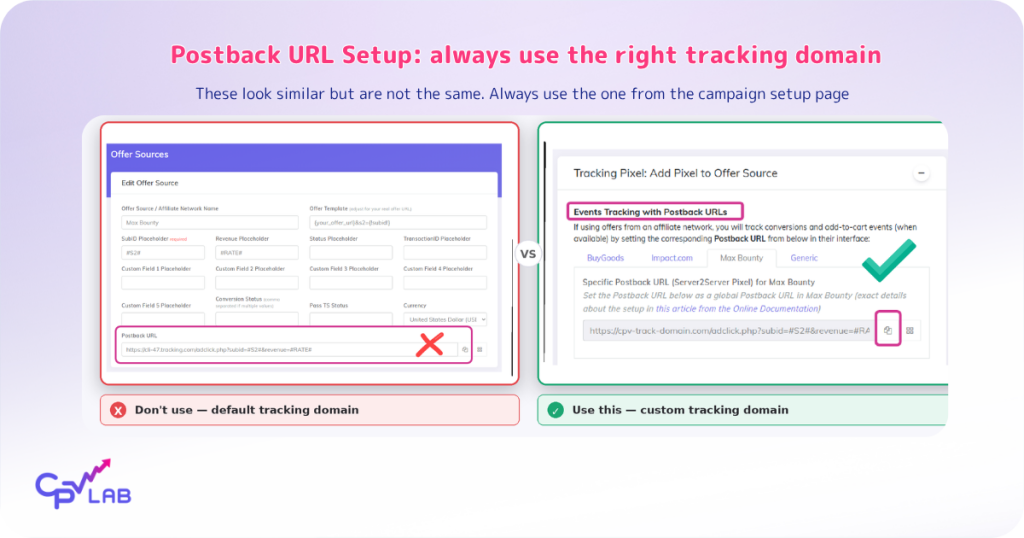
The fix: Go to your specific campaign setup page in CPV Lab (not the Offer Sources page). Copy the postback URL from there. This version uses your custom tracking domain and is the correct one to use in your network.
Cause 4: Conversion Pixel Placed on the Wrong Page
This applies when you are tracking conversions using CPV Lab’s conversion pixel – typically when you own the product or have access to the merchant’s thank-you page rather than using a postback from a network.
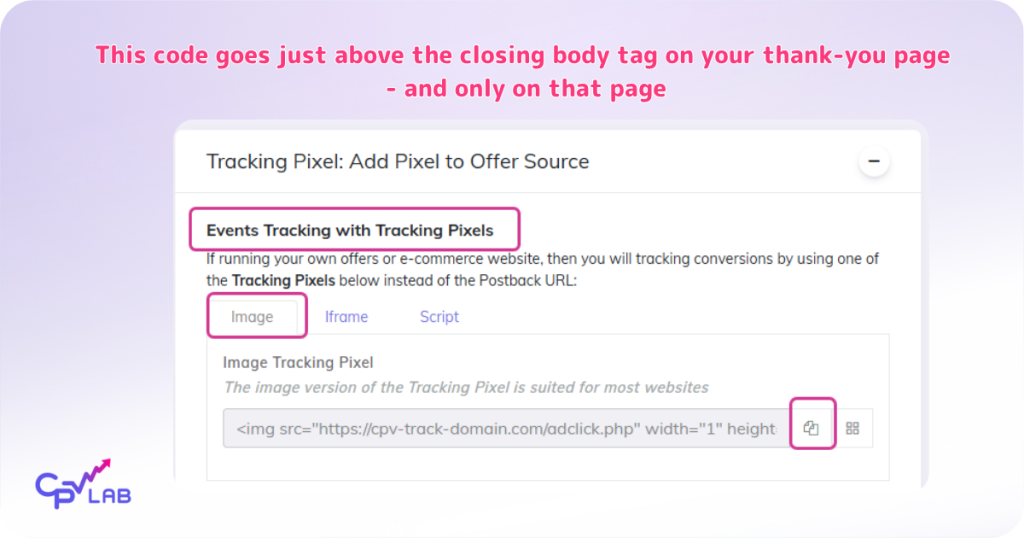
The pixel needs to fire only when a visitor completes the action. That means it goes on the confirmation page – the page shown after a successful purchase, signup, or form submission. Not the checkout page. Not the product page. The page after.
If the pixel is on the wrong page, one of two things happens:
- It fires for everyone who visits that page, inflating your conversion numbers
- It never fires at all, and you see zero conversions despite real sales happening
How to check:
Go through your own conversion flow as a real user. Click your tracking link, go through the funnel, complete the action. Check which page you land on at the end. Open the page source on that page and search for your CPV Lab pixel code. Is it there?
If it is not, either it was not added, or it was added to the wrong page.
The fix: The pixel should go on the confirmation page – the page a visitor reaches only after a successful conversion. For ecommerce this is usually the order confirmation or thank-you page. For lead gen it is the page shown after form submission.
Place the pixel just above the closing </body> tag on your thank-you or confirmation page only.
If your thank-you page has a dynamic URL (different for every order, like /thank-you/ORDER123), use the image version of the pixel – it works across all URL variations. This happens for example when you use a third-party payment processor like Stripe.
Cause 5: The Date Range Is Hiding Your Conversions
This one causes unnecessary panic on a weekly basis. Conversions are there. You just cannot see them because you are looking at the wrong time window.
Here is why. By default, CPV Lab and CPV One record conversions against the date of the original click – not the date the conversion happened. So if someone clicked your ad on Monday and bought something on Thursday, that conversion shows up on Monday in your tracker. It shows the conversion date for it as well, but it is linked to the original click date.
If you are looking at Thursday’s report only, you see zero conversions. The conversions are on Monday.
This matters especially for offers with longer consideration cycles – high-ticket products, subscription upgrades, or anything where people think before they buy.
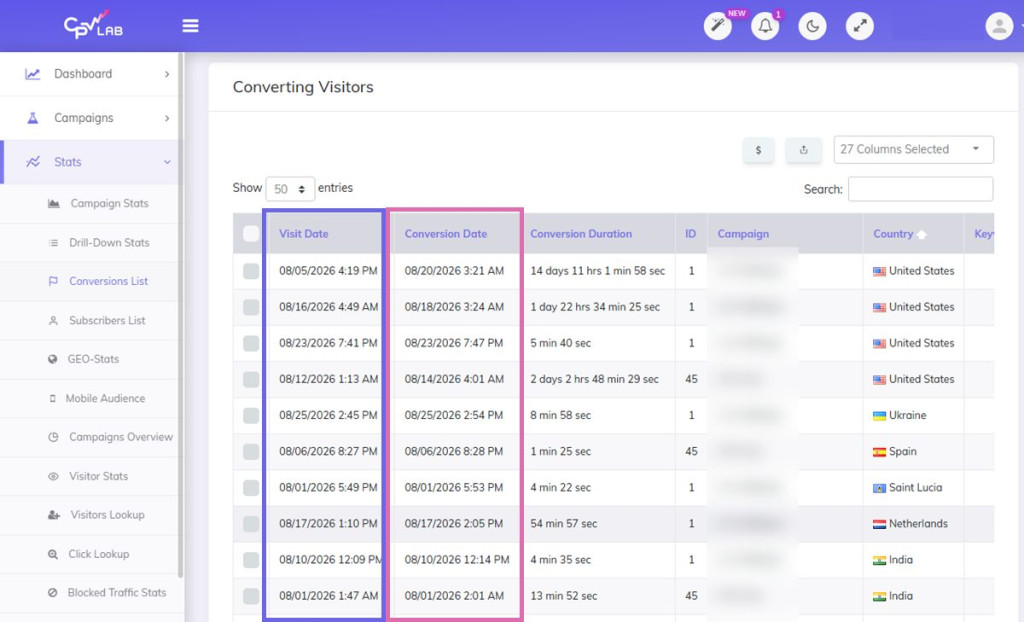
The fix: Widen your date range to cover the period when the original clicks happened. If your campaigns have been running for a week, look at the full week. If you are testing a high-ticket offer, look at 14-30 days. Before concluding conversions are missing, always check a wider window.
Also check your timezone settings. If CPV Lab is set to a different timezone than your traffic source, the same conversion can appear on different dates across platforms. Match timezones and the numbers will align.
Cause 6: The Network Is Holding Conversions in Pending Status
Sometimes everything is configured correctly. The postback URL is right. The SubID chain works. The pixel is in the right place. And conversions are still not showing.
In that case, the issue is usually on the network side.
Most affiliate networks do not fire a postback the moment a sale happens. They wait until the conversion is confirmed – past the return window, past fraud review, past whatever approval process they have. A sale that shows as “Pending” in your network dashboard has not triggered a postback yet. It will, once approved. But not yet.
How to check:
Log into your affiliate network and check the status of the conversions you expect to see. If they show as “Pending,” “Under Review,” or something similar, that is your answer. The postback has not fired yet because the conversion has not been confirmed yet.
Also check whether your network requires you to activate the postback separately after adding the URL. Some networks do not fire automatically – you have to enable it in the network settings.
The fix:
- For pending conversions: wait for the network’s approval period. Most networks confirm within 24-72 hours for straightforward offers.
- For missing postbacks even on approved conversions: contact your affiliate manager and ask them to check their postback logs. Ask them to confirm the postback fired and share the log entry.
- For networks with direct API integrations: instead of relying on postbacks, use CPV Lab’s API integration to pull conversions automatically. This is available for 2Performant and CJ Affiliate and is more reliable than anything else.
API integration guides to get conversions:
Quick Diagnosis Checklist
Before you contact support, run through this. It takes two minutes and covers every common issue in order of likelihood.
- Postback URL copied from campaign setup page (not Offer Sources)
- Postback URL pasted in full with no extra spaces or missing characters
- {!subid!} token present in your offer URL
- Correct parameter name used for your specific network
- Custom tracking domain used (not default domain)
- Pixel on confirmation/thank-you page only (if using pixel)
- Date range covers original click dates, not just today
- Network conversions not stuck in pending status
What to Send Support (to Save Yourself Time)
If you have worked through all six causes and conversions are still not showing, we are here to help. But the more context you send upfront, the faster we can find the issue – and avoid the back-and-forth that costs everyone time.
Before you reach out, have this ready:
- Your campaign URL (the tracking link you are using in your traffic source)
- A screenshot of the postback URL as it appears in your affiliate network
- A screenshot of your offer URL in CPV Lab showing the SubID parameter
- The name of the affiliate network you are using
- Any entries you see in your CPV Lab error log
Related Reading
- What is a Postback URL and How Does S2S Tracking Work
- Receiving Conversions – CPV Lab Docs
- Understanding Click Loss in Google Ads
- All Affiliate Network Integration Guides
Frequently Asked Questions
❓ Why are clicks showing in CPV Lab but no conversions?
Clicks record the moment someone visits your tracking link – no network involvement needed.
Conversions only appear when the affiliate network fires a postback URL back to CPV Lab with the SubID that matches the original click. If the postback URL is missing, wrong, or the SubID was never passed to the network, clicks record but conversions do not. Start by checking your postback URL in the network and your error log in CPV Lab.
❓ What is a SubID in affiliate tracking and why does it matter?
A SubID is a unique identifier that CPV Lab generates for each visitor click. It travels from CPV Lab to your affiliate network inside the offer URL (as {!subid!}). When a conversion happens, the network sends that same SubID back to CPV Lab in the postback. CPV Lab uses it to match the conversion to the original click. Without the SubID, CPV Lab cannot connect the sale to the traffic – so it records nothing.
❓ My affiliate network shows conversions but CPV Lab does not. What is wrong?
This means conversions are confirmed on the network side but the postback is not reaching CPV Lab correctly. Most likely causes: postback URL is wrong or incomplete in the network, the SubID token is missing from your offer URL so the network cannot return it, or the network has not activated postback firing. Check your error log first, then compare your postback URL character by character with what CPV Lab provided on the campaign setup page.
❓ What is the correct postback URL format in CPV Lab?
The standard CPV Lab postback URL format is: https://yourtrackingdomain/adclick.php?subid=[subid]&revenue=[payout]&status=[status]. The [subid], [payout], and [status] placeholders get replaced by the network with actual values when the postback fires. Always copy this URL from your campaign setup page, not from the Offer Sources page.
❓ Why does my postback URL show the default domain instead of my custom domain?
The Offer Sources page always displays the postback URL with the default tracker domain because you may have multiple custom domains. The campaign setup page shows the postback URL for that specific campaign using your custom tracking domain. Always copy from the campaign setup page.
❓ Can I track conversions without a postback URL?
Yes. If you own the product (your own ecommerce or site) or have access to the merchant’s confirmation page, you can place CPV Lab’s conversion pixel on the thank-you page. The pixel fires when a visitor reaches that page and sends the conversion to CPV Lab. This method is more dependent on the page loading correctly in the browser, so S2S postback tracking is sometimes more reliable when available. Full pixel setup here.
❓ Does this guide apply to CPV One as well?
Yes, entirely. CPV Lab (self-hosted) and CPV One (cloud-hosted) use the same postback URL format, the same SubID system, the same conversion pixel, and the same error log. Every step in this guide applies to both products.
Author: Alex B – Tehnical Support Agent at CPV Lab and CPV One
Alex is a technical support manager at CPV One & CPV Lab ad tracker. He has 5+ years experience in digital marketing and affiliate marketing, both as running campaigns and tech support for other ad tech companies, like Mondiad. As part of the support team at CPV Lab, Alex helps customers with campaign setup, campaign tracking and optimization. He likes to play paddle and hiking in his free time.