
RichAds Integration with CPV Lab | CPV One
Set up full conversion tracking for your RichAds campaigns in CPV Lab or CPV One. This guide covers all RichAds ad formats: push, in-page push, pops, direct click, native, display, and Telegram.
By the end of this guide you will have:
- RichAds set up as a traffic source in CPV Lab | CPV One
- A campaign tracking URL to paste into RichAds
- A postback URL so RichAds receives conversion data back from CPV Lab
Who is RichAds?
RichAds (opens new window) is a performance-focused ad network offering push notifications, in-page push, pop traffic, native, display, and Telegram Mini App ads. It is popular with affiliate media buyers running CPA offers across verticals like finance, sweepstakes, nutra, and e-commerce.
RichAds supports S2S postback tracking, which means CPV Lab (opens new window) or CPV One (opens new window) can send conversion data back to RichAds automatically whenever a conversion is recorded - no pixel required.
Before You Start
- An active RichAds account
- CPV Lab or CPV One already installed and accessible
- An offer and affiliate network already set up in CPV Lab | CPV One (or ready to add)
Quick Summary
- Step 1 - Add RichAds as a Traffic Source in CPV Lab | CPV One
- Step 2 - Add Your Offer
- Step 3 - Create a Campaign in CPV Lab | CPV One
- Step 4 - Create the Campaign in RichAds
- Step 5 - Verify Tracking is Working
Step 1 - Add RichAds as a Traffic Source in CPV Lab | CPV One
- Go to Sources ➡️ Traffic Sources.
- Click Import from Catalog.
- Search for RichAds and select the entry that matches your ad format:
- RichAds Push - for push and in-page push campaigns
- RichAds Pops - for pop and direct click campaigns
- RichAds Native - for native and display campaigns
- RichAds Telegram - for Telegram Mini App campaigns
- Click Save.
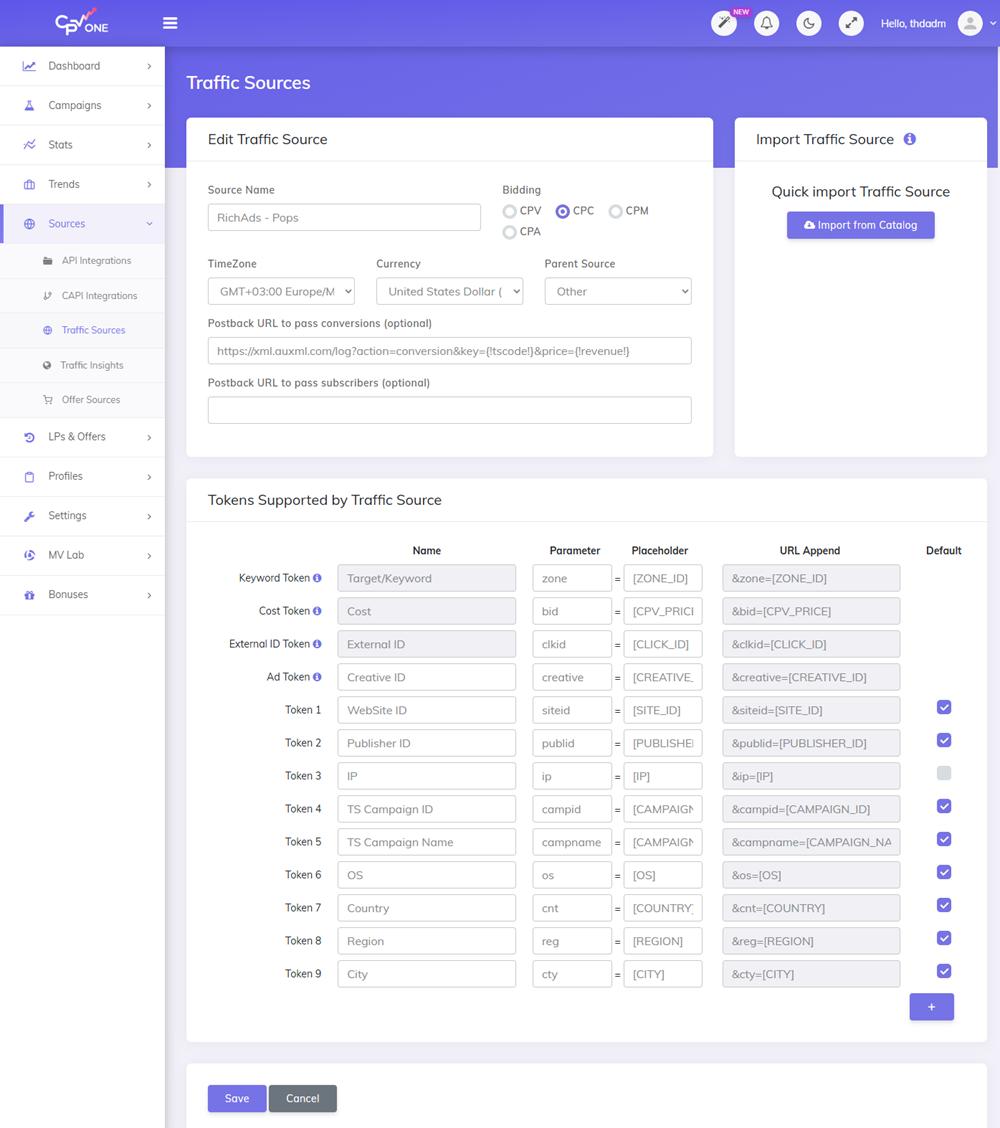
💡 If you run multiple RichAds ad formats, add a separate traffic source entry for each one. This keeps your campaign data clean and makes it easy to filter by format in your reports.
The catalog entry pre-fills the tracking tokens for your chosen format. Here is a reference of the tokens RichAds supports by format:
Push / In-page push
| Token | What it passes |
|---|---|
[SUB_LIST_ID] | Subscriber list ID |
[PUBLISHER_ID] | Publisher ID |
[SITE_ID] | Website ID |
[BID_PRICE] | Winning price of the click |
[CLICK_ID] | Unique click ID - required for conversion tracking |
[CAMPAIGN_ID] | RichAds campaign ID |
[CAMPAIGN_NAME] | Campaign name |
[COUNTRY] | Country |
[CREATIVE_ID] | Creative ID |
[BROWSER] | User's browser |
[CARRIER] | Mobile carrier |
[CONNECTION_TYPE] | Connection type |
[DEVICE] | Device type |
[IP] | User's IP |
[ISP] | ISP |
[OS] | OS name and version |
Pops / Direct click and Native / Display
| Token | What it passes |
|---|---|
[ZONE_ID] | Zone ID where the ad is displayed |
[PUBLISHER_ID] | Publisher ID |
[SITE_ID] | Website ID |
[CPV_PRICE] | Winning price per 1000 impressions |
[CLICK_ID] | Unique click ID - required for conversion tracking |
[CAMPAIGN_ID] | RichAds campaign ID |
[CAMPAIGN_NAME] | Campaign name |
[COUNTRY] | Country |
[CREATIVE_ID] | Creative ID |
[BROWSER] | User's browser |
[CARRIER] | Mobile carrier |
[CONNECTION_TYPE] | Connection type |
[DEVICE] | Device type |
[IP] | User's IP |
[ISP] | ISP |
[OS] | OS name and version |
Telegram
| Token | What it passes |
|---|---|
[TG_PUB_ID] | Publisher ID (can contain several mini apps) |
[TG_APP_ID] | Mini app ID |
[BID_PRICE] | Winning price of the click |
[TG_USER_TYPE] | Whether the user has a premium account |
[CLICK_ID] | Unique click ID - required for conversion tracking |
[CAMPAIGN_ID] | RichAds campaign ID |
[CAMPAIGN_NAME] | Campaign name |
[COUNTRY] | Country |
[CREATIVE_ID] | Creative ID |
[BROWSER] | User's browser |
[CARRIER] | Mobile carrier |
[CONNECTION_TYPE] | Connection type |
[DEVICE] | Device type |
[IP] | User's IP |
[ISP] | ISP |
[OS] | OS name and version |
⚠️
[CLICK_ID]is the most important token. It links each click to a conversion, so RichAds can optimize your campaigns. Always make sure it is included in your campaign URL.
Also set the Postback URL for your RichAds traffic source. This is what CPV Lab fires when a conversion is recorded, sending the data back to RichAds:
https://us.ahows.co/log?action=conversion&key={!tscode!}&price={!revenue!}
Paste this into the Postback URL field in the traffic source settings in CPV Lab | CPV One.
Step 3 - Create a Campaign in CPV Lab | CPV One
Go to Campaigns ➡️ Add New Campaign.
Choose your campaign type:
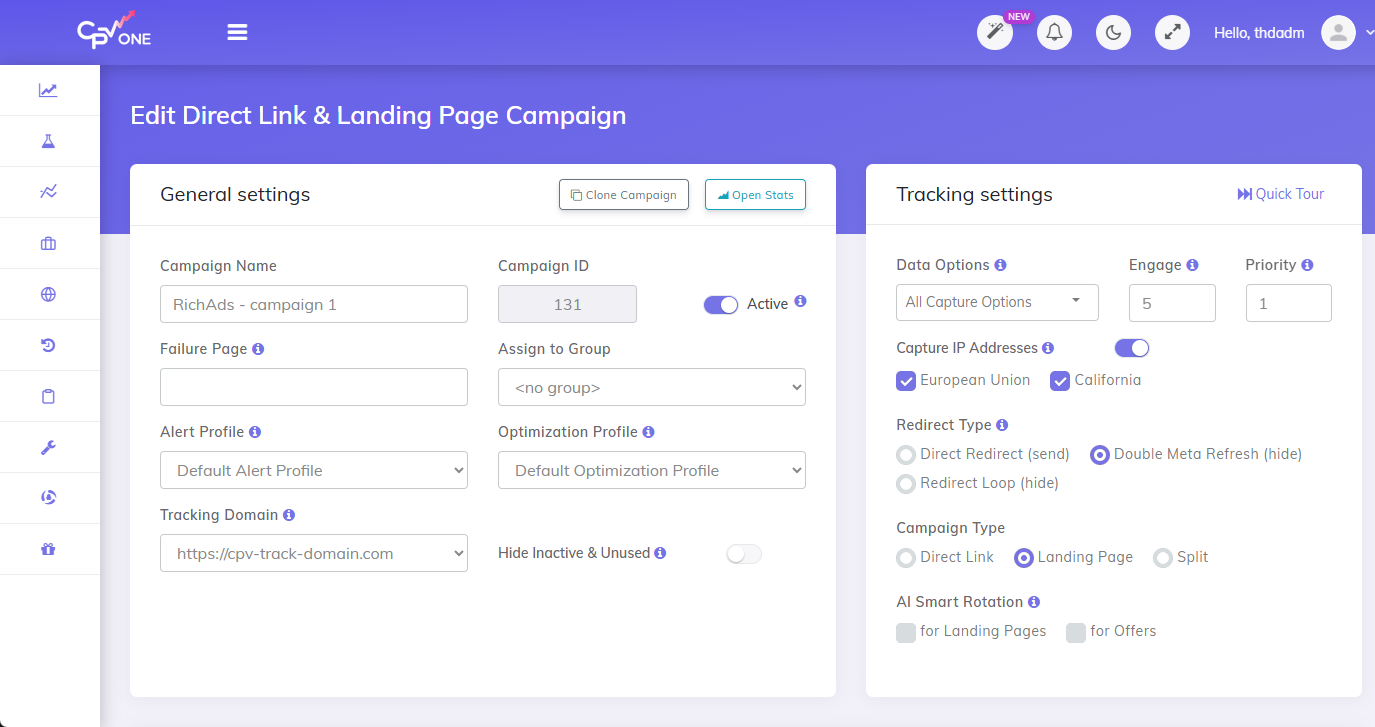
In General & Tracking Settings:
- Enter a Campaign Name
- Choose your custom tracking domains
- Select the Data Options you want to track
- Select the campaign model:
- Direct Link & Landing Page - send traffic straight to the offer with no landing page
- Landing Page - send traffic to a landing page first, then to the offer
- Set Traffic Source to your RichAds traffic source from Step 1
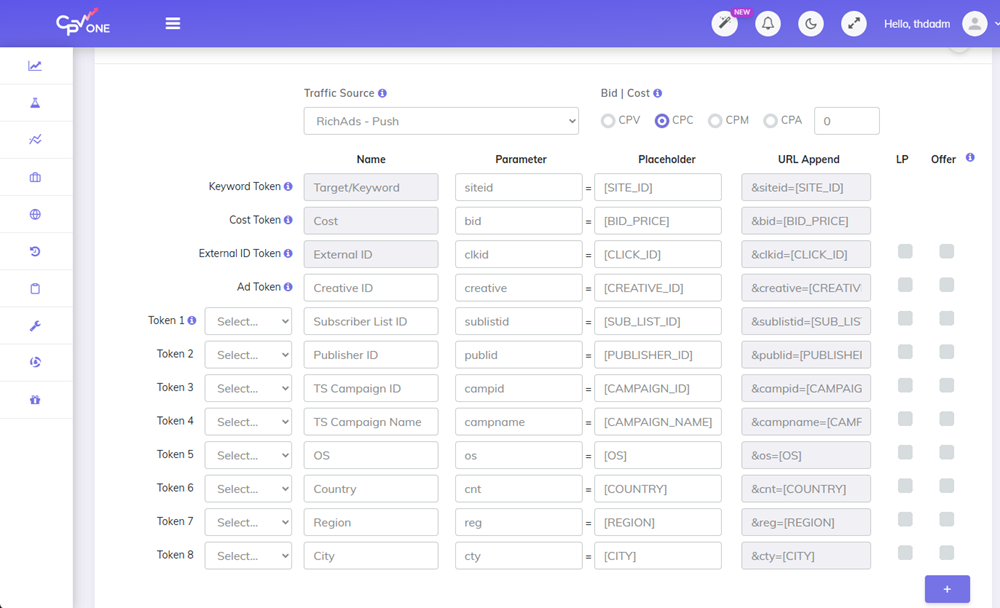
- Add your Landing Pages (if using landing pages) and Offers
- Select "Define new Offer"
- Fill in:
- Offer Name - something you will recognize, for example RichAds - Finance Lead - US
- Offer Source - select your affiliate network
- Offer URL - paste your affiliate offer URL, making sure it includes
{!subid!}in the SubID field so conversions are linked to clicks
- Go to Links & Pixels and copy the Campaign URL.
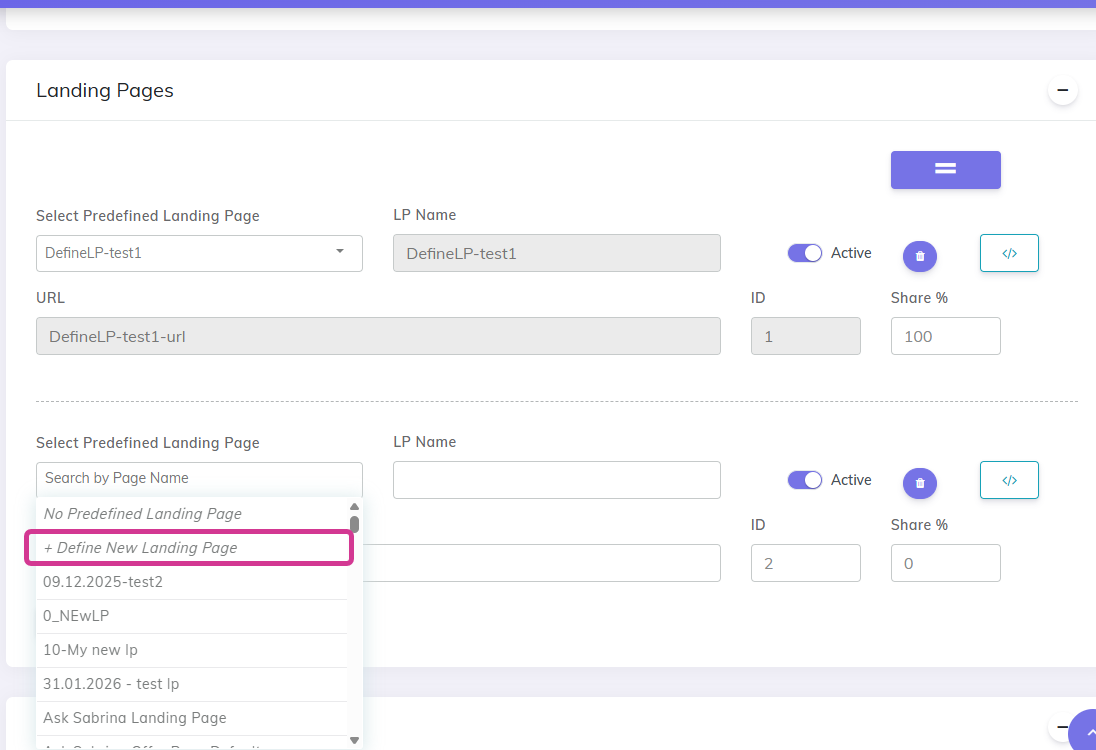
💡 If your affiliate network is not yet in CPV Lab | CPV One, go to Sources ➡️ Offer Sources and add it first. Copy the postback URL from CPV Lab and paste it into your affiliate network account so conversions fire back to CPV Lab.
✅ This Campaign URL is what you paste into RichAds as the destination URL for your ad.
💡 RichAds requires
[CLICK_ID]to be passed as a parameter. CPV Lab's Campaign URL already includes the click ID parameter when the RichAds traffic source is selected from the catalog.
Step 4 - Create the Campaign in RichAds
- Log in to your RichAds account and click Create Campaign.
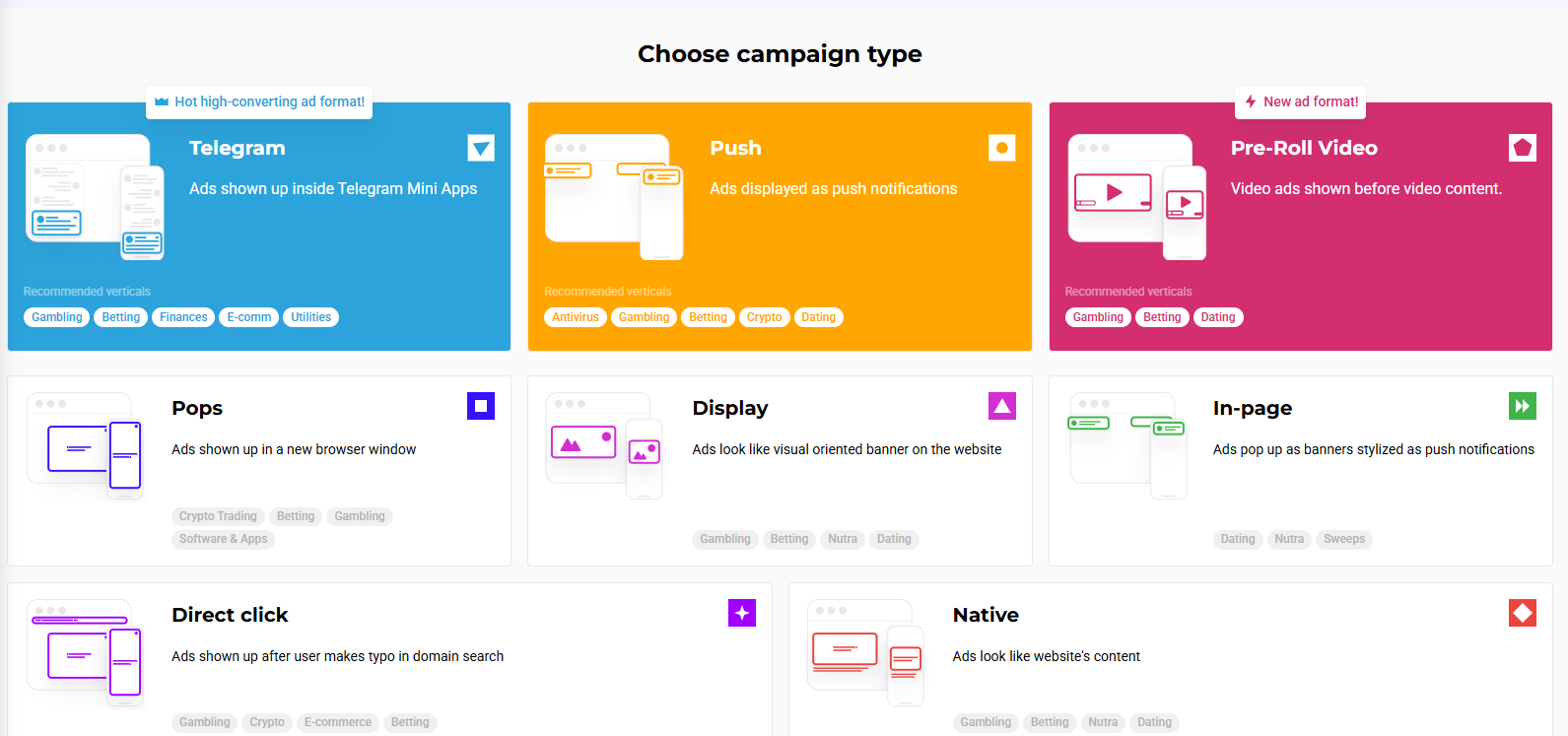
- Select your campaign type in RichAds depending on the ad format (Push, Pops, Native, Telegram, Direct, etc.).
- Set up your targeting: GEO, device, OS, browser, and any other targeting options.
- In the Destination URL field, paste the Campaign URL you copied from CPV Lab in Step 3.
- Set your bid and budget.
- Submit the campaign for review.
Step 5 - Verify Tracking is Working
Once your campaign is live and has received some clicks:
- Go to Settings ➡️ Campaign Stats in CPV Lab | CPV One.
- Check that clicks are being recorded in CPV Lab with the right values
- Trigger a test conversion (or wait for a real one) and check the Postback Log for an outgoing entry to
us.ahows.co- this confirms CPV Lab fired the conversion back to RichAds.
❌ Clicks not appearing in CPV Lab?
- Check that the Campaign URL from CPV Lab is correctly pasted into RichAds' Destination URL field.
- Make sure
[CLICK_ID]is included in the URL and mapped to the correct CPV Lab token.
❌ Conversions not appearing in RichAds?
- Check the Postback Log in CPV Lab for errors on the outgoing RichAds postback.
- Make sure the Postback URL is saved in the RichAds traffic source settings in CPV Lab.
- Confirm your affiliate network is firing the CPV Lab postback URL when a conversion happens.
Frequently Asked Questions
Does CPV Lab support all RichAds ad formats? Yes. CPV Lab and CPV One support push, in-page push, pops, direct click, native, display, and Telegram. Each format has its own catalog entry with the correct tracking tokens pre-filled.
What is [CLICK_ID] and why is it important? [CLICK_ID] is a unique ID RichAds assigns to every click. When CPV Lab | CPV One receives a conversion, it sends that click ID back to RichAds in the postback URL. This is how RichAds knows which click, creative, zone, and campaign produced the conversion - and uses that data to optimize your bids.
Do I need a landing page, or can I use a direct link? Both work. Direct link sends visitors straight from your ad to the offer - simpler to set up. A landing page lets you pre-sell the offer and gives you more data on where visitors are dropping off. CPV Lab and CPV One supports both campaign types.
Can I run multiple RichAds campaigns from one CPV Lab campaign?
Yes. Once your CPV Lab campaign is set up, you can use the same Campaign URL across multiple RichAds campaigns. Each click will still be tracked individually via the [CLICK_ID]. But the most used approach is to use a campaign in CPV Lab (or CPV On) and one in RichAds.
How do I track costs in CPV Lab?
The [BID_PRICE] token (for push and Telegram) or [CPV_PRICE] token (for pops and native) passes the actual cost per click or per 1000 impressions back to CPV Lab. Make sure these tokens are included in your traffic source setup so CPV Lab |CPV One can calculate ROI accurately.